❓ YT re:Watch FAQ — YouTube History Extension & Privacy
Quick answers about the privacy-first YouTube history extension that keeps progress across multiple accounts, works without login, and stores your data locally.
🔄 Account Independence (Most Asked!)
Q: What happens when I switch YouTube accounts?
A: 🎉 This is amazing - your history stays exactly the same! - YouTube's history: Tied to your account, so you can't access it when you switch accounts or log out - YT re:Watch: Same history regardless of which account you use - Switch between work/personal accounts freely - Share a computer with family without losing your progress - Log out completely and still keep your viewing history - Perfect for multi-account users!
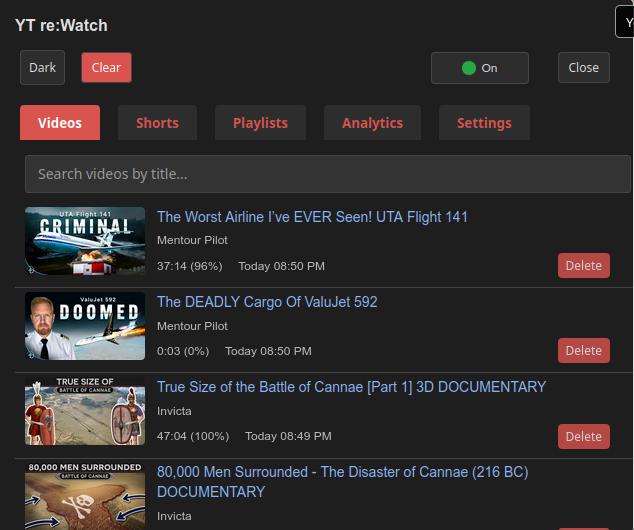 Your viewing history works the same across all accounts
Q: Can I use this without a YouTube account?
A: YES! This is one of our biggest advantages:
- No YouTube login required
- No Google account needed
- Watch YouTube completely anonymously
- Still get full history tracking and progress saving
- Perfect for privacy-conscious users
🚀 Getting Started
Q: How do I install the extension?
A: Click the install button for your browser: - Chrome: Chrome Web Store - Firefox: Firefox Add-ons
The extension will start working immediately - no setup required!
Q: Do I need to create an account?
A: No! The extension works without any accounts, signups, or logins.
Q: Is it really free?
A: Yes, completely free. No ads, no premium features, no hidden costs.
🎯 Basic Usage
Q: How do I see my watch history?
A: Click the extension icon in your browser's toolbar (looks like a play button). You'll see tabs for: - Videos: Your regular YouTube videos - Shorts: YouTube Shorts you've watched - Playlists: Playlists you've discovered - Analytics: Charts showing your viewing patterns
Q: Why don't I see the "viewed" label on videos?
A: The extension adds visual overlays directly on YouTube showing your progress. The label appears after you've watched at least 10 seconds of a video. If you still don't see it: 1. Refresh the YouTube page 2. Make sure you're on youtube.com (not youtube.tv) 3. Check that the extension is enabled
Note: These overlays are fully customizable! You can change the text, colors, and size in Settings.
Q: How does the progress bar work?
A: The extension saves your position every 5 seconds. When you return to a video, you'll see: - A small progress bar showing how much you've watched - The exact time you stopped (like "5:30 (45%)")
🔧 Troubleshooting
Q: The extension isn't working, what should I do?
A: Try these steps in order: 1. Refresh the YouTube page - this fixes 90% of issues 2. Close and reopen the extension popup 3. Check if you're on youtube.com (not mobile YouTube or YouTube TV) 4. Disable and re-enable the extension 5. Restart your browser
Q: My history disappeared, where did it go?
A: Your history is stored locally on your device. It might seem missing if: - You're using a different browser profile - You cleared your browser data - You're using incognito/private browsing mode
Check the extension popup - your history should still be there.
Q: Videos aren't saving automatically
A: Make sure: - You're watching videos for at least 10 seconds - You're on youtube.com (the extension doesn't work on embedded videos) - The extension is enabled in your browser settings
📱 Features & Functionality
Q: What's the difference between Videos and Shorts tabs?
A: - Videos Tab: Regular YouTube videos (usually longer content) - Shorts Tab: YouTube Shorts (vertical videos under 60 seconds) - They're separated to help you track different types of content
Q: What can I see in the Analytics tab?
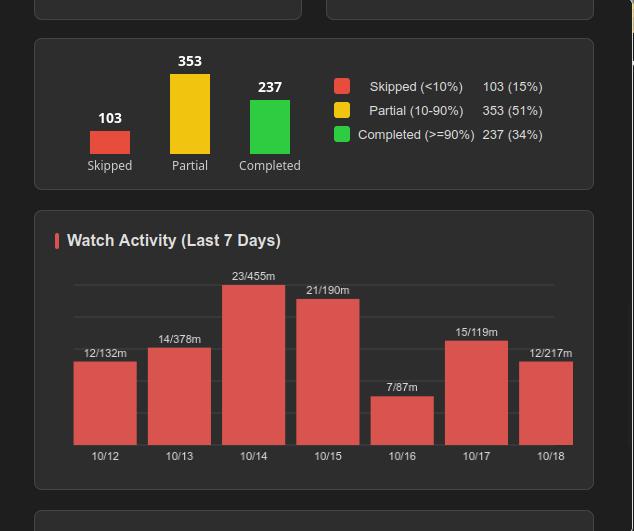
A: Interactive cards and charts showing: - How much time you spend watching videos each day - Your viewing patterns by hour of the day - Longest unfinished videos (with channel and time left) - Top 5 watched channels (with links) - Top 5 skipped channels (with links) - Completion bar chart for long videos (skipped, partial, completed, with legend)
Q: Can I search through my history?
A: Yes! Use the search box at the top of the Videos tab to find specific videos by title.
Q: Can I delete individual videos from my history?
A: Yes, click the "Delete" button next to any video to remove it from your history.
Q: Can I remove a video directly from a YouTube thumbnail?
A: Yes. Hover a thumbnail to reveal the "Remove from history" button added by the extension. Clicking it removes that video from your local history immediately.
Q: Will deleted videos stay deleted?
A: YES! We've implemented a robust deletion system: - Deleted videos stay deleted in your local history, even after migrations or imports - Tombstone protection ensures deletions are respected locally and prevent reappearance from the archive - 30-day protection period prevents accidentally restoring deleted videos - Works across accounts on the same browser profile – deletions persist even when switching YouTube accounts - Automatic cleanup removes old deletion markers after 30 days
This solves the common problem where deleted videos would reappear in searches.
Q: What happens if I delete a video on one device?
A: The deletion will be protected locally: 1. Video is immediately removed from your history 2. A deletion marker is created to protect the deletion 3. The video won't reappear in searches or listings 4. Protection lasts for 30 days to ensure consistency
🔐 Privacy & Data
Q: Can I use this without a YouTube account?
A: YES! This is one of our biggest advantages:
- No YouTube login required
- No Google account needed
- Watch YouTube completely anonymously
- Still get full history tracking and progress saving
- Perfect for privacy-conscious users
Q: How is this different from YouTube's built-in history?
A: More convenient AND your history stays private: - YouTube's history: Stored on Google's servers, tied to your account, used for ads/recommendations, inaccessible when you switch accounts - YT re:Watch: Stored only on your device, history data stays private, Google doesn't get your progress, works across ALL accounts - Google doesn't get your viewing progress data! - Never lose your progress when switching between accounts!
Q: Is my viewing history private?
A: Yes, your history data is private! - Your viewing progress stays on your device only - We don't collect, see, or store any of your history information - No external servers are involved in history tracking - Your viewing progress is yours alone - Google doesn't get your progress data - Even we can't access your history data
Q: Can I backup my data?
A: Yes! Go to Settings tab and click "Export History" to download a backup file. You can import it later if needed.
Q: Does this affect my YouTube recommendations?
A: No, this extension doesn't interact with YouTube's recommendation system at all. Your private viewing stays private!
Q: Can I research sensitive topics privately?
A: Absolutely! This is perfect for: - Academic research without creating a "profile" - Exploring topics without affecting recommendations - Learning about subjects privately - Medical research without health profiling
 Track your research privately - no Google profiling
Q: Does this extension block ALL Google tracking?
A: ⚠️ NO - Important limitation to understand:
What YT re:Watch protects: - ✅ Your YouTube viewing history (stored locally, not on Google servers) - ✅ Video progress tracking (private, not shared with Google) - ✅ Playlist discovery (local only)
What YT re:Watch DOES NOT protect against: - ❌ IP address tracking - ❌ Browser fingerprinting - ❌ Cookie tracking - ❌ Google Analytics - ❌ YouTube's advertising profiling - ❌ Other Google surveillance mechanisms
For broader privacy protection, also use: - VPN service (hide your IP) - Privacy-focused browser (Firefox, Brave) - Ad blockers (uBlock Origin) - Cookie management tools - DNS filtering (Pi-hole, AdGuard)
YT re:Watch handles ONLY the history tracking part - it's one tool in a privacy toolkit.
🔄 Data Management & Multiple Devices
Q: Can I transfer my history between devices?
A: Yes! Use the export/import feature to manually transfer your history between devices. There is no automatic cloud sync – export/import is the official way to move your data: 1. Go to Settings tab → Data Management → Export History 2. Download the JSON file to your computer 3. On the other device, go to Settings → Import History 4. Select the JSON file and choose "Merge" or "Replace"
Q: How much data can the extension store?
A: Unlimited! The hybrid storage system can handle 100,000+ videos and scale to GBs of data, unlike the previous ~50MB limit.
Q: Can I stop saving progress when watching inside playlists?
A: Yes. There are two options: - Global: Enable "Pause history in playlists" in Settings to stop tracking progress during any playlist session. - Per‑playlist: Use the playlist's "Ignore videos" toggle in the Playlists tab to exclude just that playlist.
Q: What happens if I run out of storage space?
A: The extension uses IndexedDB which scales automatically. However, if you have extremely large histories (millions of videos), you may want to use the auto-cleanup feature in Settings to remove old entries.
Q: Is my data safe during the migration to hybrid storage?
A: Yes! The migration process is fail-safe: - Data is never deleted until successfully archived in IndexedDB - Migration can be resumed if interrupted - You can always export your data as backup before updates
🎨 Customization
Q: Can I customize the visual overlays?
A: Yes! The overlays are fully customizable. In the Settings tab, you can change:
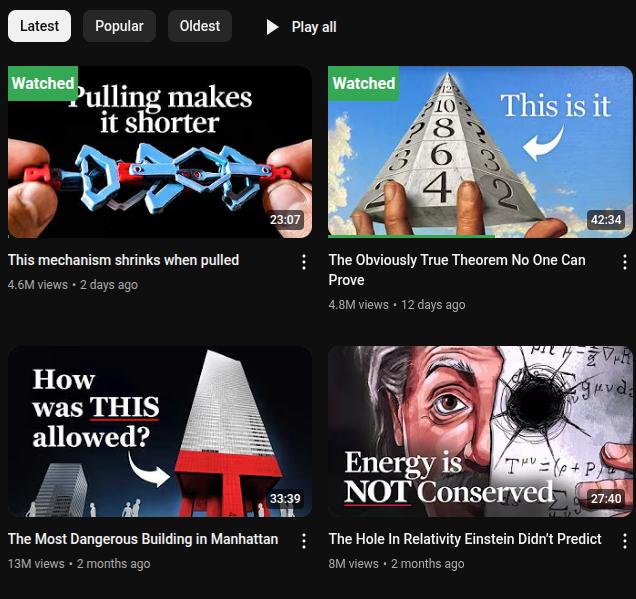 Example of overlay customization - change colors, text, and size
- Overlay Title: Change "viewed" to any text you prefer (max 12 characters)
- Overlay Color: Choose from blue, red, green, purple, or orange
- Label Size: Small, medium, large, or extra large
- Theme: Light, Dark, or System (follows your computer's theme)
Q: How do I switch between light and dark theme?
A: - Quick way: Click the theme button in the extension popup - Settings way: Go to Settings tab and choose your preferred theme
Q: Can I hide the progress bars?
A: The extension is designed to be minimal and non-intrusive. You can make the labels smaller in Settings, but they can't be completely hidden since that's the main feature.
🛠️ Advanced Questions
Q: Can I export my data to use with other tools?
A: Yes! The export feature creates a JSON file with all your data. You can use this with other tools or for analysis.
Q: Does this work with YouTube Music?
A: No, this extension only works with regular YouTube (youtube.com).
Q: What about YouTube TV or embedded videos?
A: The extension only works on the main YouTube website (youtube.com) for security and privacy reasons.
Q: How often does the extension save my progress?
A: Every 5 seconds while you're watching a video, plus when you pause or leave the page.
🤝 Getting Help
Q: I have a question not listed here
A: - 💬 Join our community: Community Forum - Get help from other users - 💬 Telegram group: Telegram Chat - Real-time support - 📖 Read the detailed guide: Detailed Guide - Complete walkthrough - 🐛 Report issues: GitHub Issues - Found a bug?
Q: How do I report a bug?
A: 1. Go to our GitHub Issues page 2. Click "New Issue" 3. Describe what you expected to happen vs. what actually happened 4. Include your browser version and operating system
Q: Can I contribute to the project?
A: Absolutely! We welcome: - Code contributions - Bug reports - Feature suggestions - Documentation improvements - Translations
Check out our Contributing Guide for more details.
Can't find your question? Join our Community Forum or Telegram community - we're friendly and helpful!
🌐 Multilanguage Support
Q: What languages does YT re:Watch support?
A: English, German, Spanish, French, and Bulgarian. All non-English translations are currently machine-generated. Native speakers are encouraged to help improve translations!
Q: How can I help improve translations?
A: See the technical documentation for translation guidelines. You can submit improvements via pull request.
📊 Analytics & Statistics
Q: What's new in the Analytics tab?
A: The Analytics tab now features summary cards, longest unfinished videos, top watched/skipped channels, a completion bar chart, and new activity charts. All analytics are calculated locally and never leave your device.
For accuracy and responsiveness:
- Short-window charts (Activity last 7 days, Watch Time by Hour) are computed on-the-fly from local history when you open the tab.
- Totals are maintained as a small local snapshot (totalWatchSeconds, 24-hour buckets, and counters), and included in exports. Daily keys use local dates.
Q: Why do I see channel names under titles in my history?
A: The history list now displays the channel name under each video title to make scanning your history faster and clearer.
Q: Did the export format change?
A: Yes. Starting with dataVersion 1.1, exports include a stats object containing your aggregated watch‑time snapshot used for Analytics. This is optional data used solely to speed up and stabilize charts. Imports accept files with or without stats.
Q: How do I interpret the completion bar chart?
A: It shows the number of long videos you skipped, partially watched, or completed. The legend explains each category.